Copy link
Team
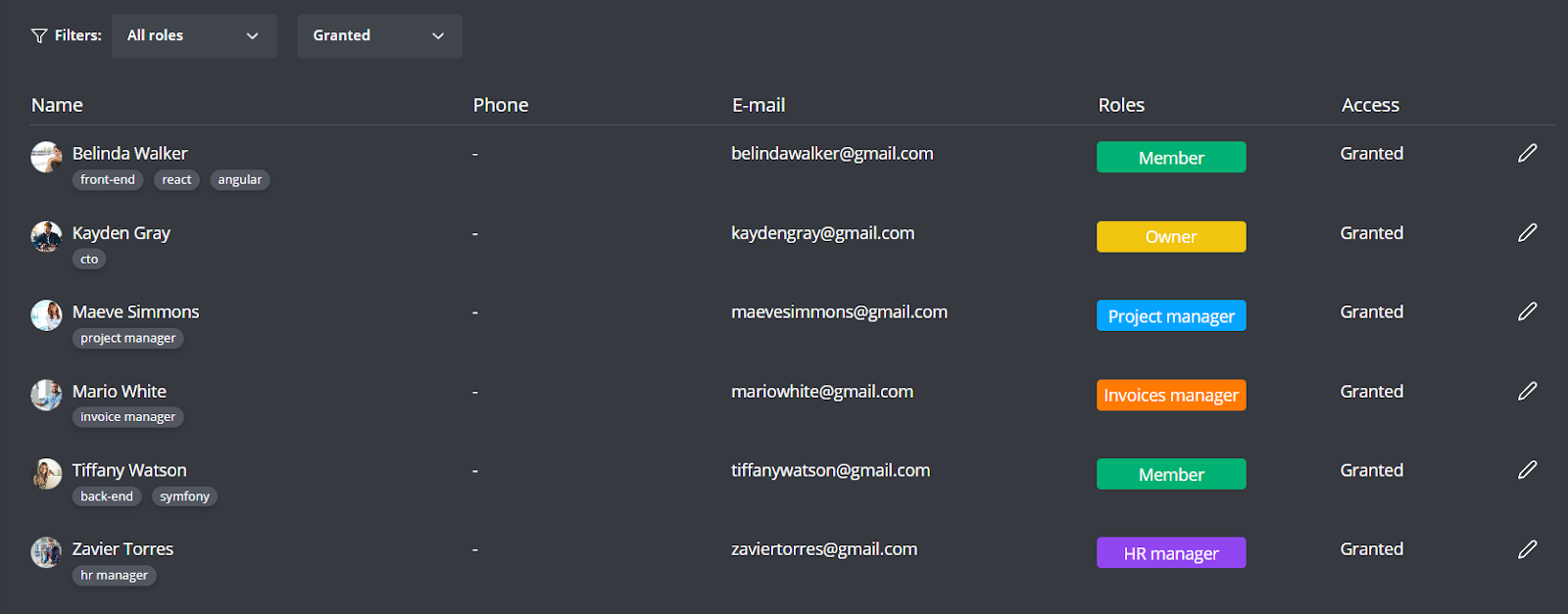
The team list contains valuable information for each member:
- Name: The team member's name.
- Phone: The phone number of the team member (if provided).
- E-mail: The team member's email address used for communication and account verification.
- Roles: The assigned role within the team - can be Owner, Admin, Invoice Manager, or Member.
- Access: The level of platform access granted to the team member.
Defining Team Member Roles
Each team member can be assigned one of four roles, each with different permissions:
- Owner: The Owner, typically the creator of the team, has full control over all team settings and can manage projects and tasks.
- Admin: Admins have the same permissions as the Owner.This role is for team members who manage team settings and projects.
- HR: HR role has the same permissions as the Owner,except for the ability to manage invoicing processes and Subscription page.
- Project manager: Project Manager role has the same permissions as the Owner,except for the ability to manage invoicing processes and Subscription page.
- Invoice Manager: Invoice Managers are responsible for managing the team's invoicing process, including creating and sending invoices to clients.
- Recruiter: Does not have access to Clients page, Invoices, Subscriptions.
- Member: Members have access to team projects, tasks, and time tracking features, but they cannot access team settings or invoicing features.
Inviting, Editing, and Removing Team Members
Invite New Members:
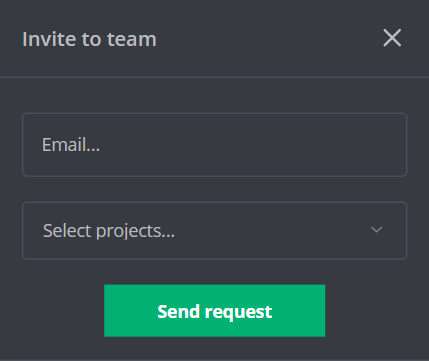
- Click the "Invite to team" button.
- Enter the new member's email address in the appropriate field.
- Select the project or projects that the new member will be added to from the "Select project..." dropdown menu.
- Click "Send request" to invite them.
Edit Member Access or Role:
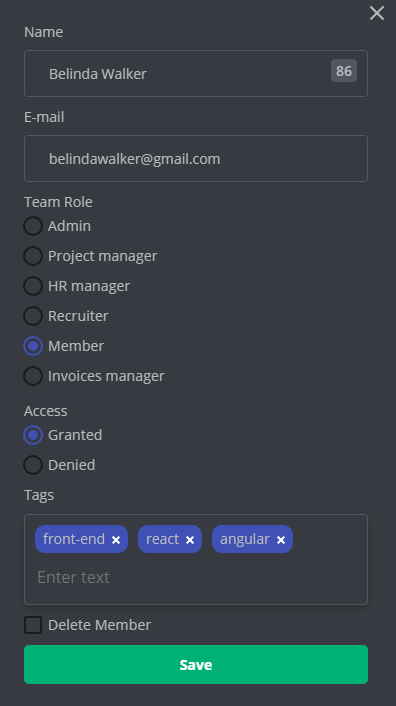
- Locate the team member in the list and click on the "Edit" button next to their name.
- Update the member's access, team role, or tags as necessary.
- Click "Save" to apply these changes.
Remove a Team Member:
- Locate the team member in the list and click the "Edit" button next to their name.
- In the edit window, check the "Delete user" box.
- Click "Save" to confirm the deletion.