Copy link
Timer Page
Here's how to use key features on the Timer page:
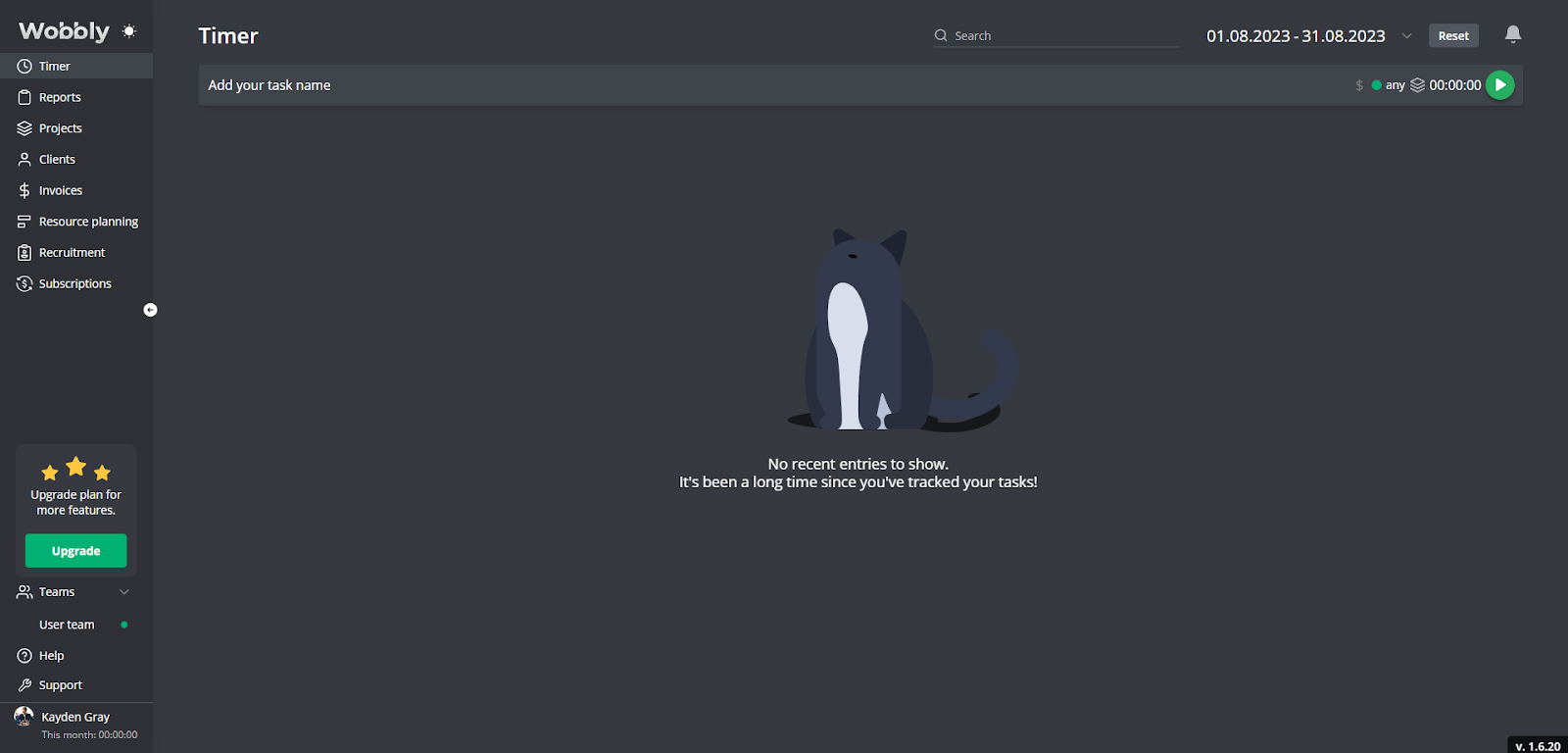
- Start/Stop the Timer: Click the button to start and stop tracking your time on tasks or projects.
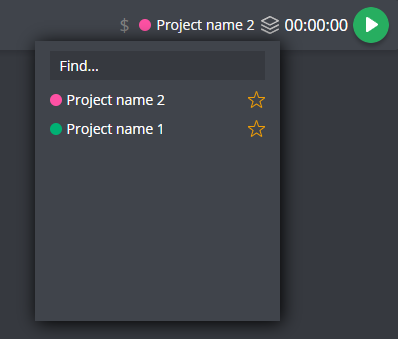
- Select a Project: Before starting the timer, select the project you'll be working on to accurately track your time spent.
- Add a Task: Describe the specific task you'll be working on within your chosen project.

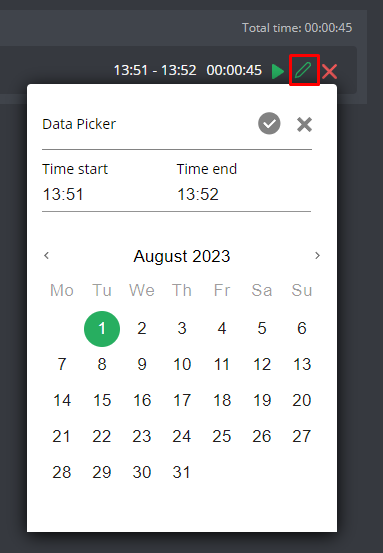
- Edit Time Entries: Adjust start and end times, project details, or task descriptions for any time entry.

- Restart Time Entries: To resume a task after stopping the timer, click the "Restart" button next to the relevant time entry.

- Delete Time Entries: If you've tracked time for the wrong task, remove the entry by clicking the "Delete" button.

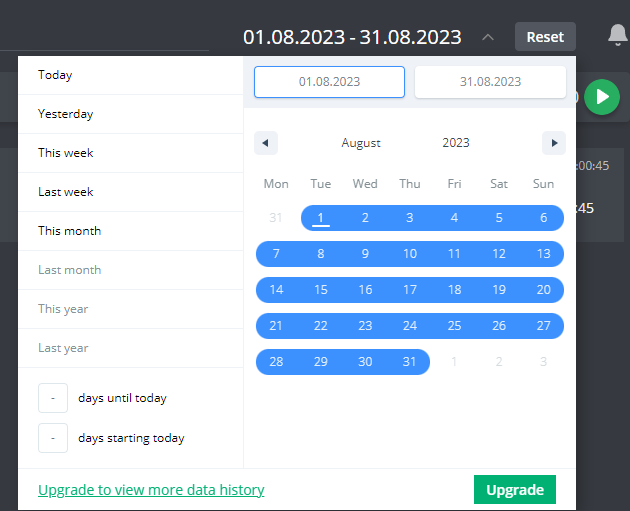
- View Time Logs: The Timer page also allows you to review your time logs, showing detailed records of time spent on each project and task. Use the time period filter to view tracked tasks for specific periods.